Showing posts with label Custom. Show all posts

Friday, March 7, 2014

TCL | Create WTP-Profile and add all FAPs on units to new profile

Problem: 

We had a good percentage of access points across the enterprise that were not assigned to a WTP profile but instead were set to "Automatic". Even though this caused us no immediate harm it was definitely not optimal. 

In order to fix this issue we needed a uniform WTP profile across the board on all Fortigates and we needed to assign all of the FAPs on each FGT to the uniform WTP profile. Unfortunately, this option is not available through the standard Fortimanager features and is a very cumbersome process via the CLI because in order to reference the AP you need to address it by it's serial #.

ex:

config wireless-controller wtp
edit "FAP22B3U12345678" 
set wtp-profile "NEWdefaultwifiprof" 
end

Solution:

For a work around we will need to script out this manual process.
The script will need to:

1. Create a new standard WTP profile. 
2. Query all of the FAPs on the unit. 
3. Add each FortiAP to the new WTP profile by serial. 

Script:


#!
#creates do_cmd process
proc do_cmd {cmd} {
  puts [exec "$cmd\n" "# "]
}
#creates single instance of new wtp-profile
do_cmd "config wireless-controller wtp-profile"
do_cmd "edit NEWdefaultwifiprof"
do_cmd "config radio-1"
do_cmd "set mode ap"
do_cmd "set band 802.11n-5G"
do_cmd "set ap-bgscan enable"
do_cmd "set rogue-scan enable"
do_cmd "set frequency-handoff enable"
do_cmd "set ap-handoff enable"
do_cmd "set vaps NewSitewifi"
do_cmd "set channel 36 40 44 48 149 153 157 161 165"
do_cmd "end"
do_cmd "config radio-2"
do_cmd "set mode ap"
do_cmd "set band 802.11n"
do_cmd "set ap-bgscan enable"
do_cmd "set rogue-scan enable"
do_cmd "set frequency-handoff enable"
do_cmd "set ap-handoff enable"
do_cmd "set vaps NewSitewifi"
do_cmd "set channel 1 6 11"
do_cmd "end"
do_cmd "next"
do_cmd "end"
#queries all access points
foreach line [split [exec "show wireless-controller wtp | grep edit\n" "# "] \n] {
#regexp to match FAP serial #s
  if {[regexp {edit[ ]+"(.*)"} $line match fapid]} {
#assigns all aps on fortigate to new wtp-profile
    do_cmd "config wireless-controller wtp"
    do_cmd "edit $fapid"
    do_cmd "set wtp-profile NEWdefaultwifiprof"
    do_cmd "end"
      }

}


Thursday, September 6, 2012

No FortiManager, No Problem! [Windows]

Having a Fortimanager can get pricey. Not to mention risky when dealing with the latest builds and a large FGT network. In this post we will examine how we can run scripts/commands on your entire network without a manager by using open source software and the FortiOS CLI.

Download PLink


1. First create a working folder in your root drive. In the illustration below I have named my folder "putty".


2. Then inside the putty folder we will create the following folder structure to store our info. 

Devices / Logs / Scripts. Also save your plink.exe file in this root folder. 


3. Open your "devices" folder and create a new txt file. Add the interface IPs you will be connecting to via SSH in a single column.


4. Open the "scripts" folder and create a new txt with your commands.

This can be any command that you would be able to run in an SSH session on the Fortigate.

Refer to this post for CLI scripting help.

In this case I have used       
get system status | grep Serial-Number


5. Go back to your root folder "putty" and create a new txt file. Save it as "script_FGT.cmd". 

In this txt file we will be calling the script to run on your devices list and create a log in our logs folder. 

Replace username with your account username and password with the account password.

for /f %%i in (c:\putty\devices\devices.txt) do c:\putty\plink.exe username@%%i -pw password -m c:\putty\scripts\grepserial.txt >> c:\putty\logs\_LOG.txt


6. Finally, open a command prompt and run script_FGT.cmd. 


Resources:

Please post any questions in the comments section below. 


Wednesday, December 3, 2008

How to setup a custom FortiClient install.

In this tutorial I will demonstrate how you should setup a custom Forticlient install for your users and include some example scripts to help you along.


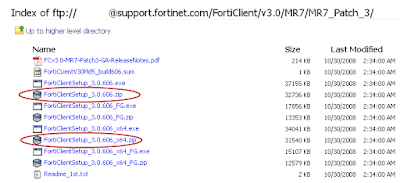
1. Log into the Fortinet Support site and download the latest .zip package of Forticlient.

[Note that the install packages with _FG in the filename are for uploading directly to the Fortigate only.]


ftp://support.fortinet.com/FortiClient/v3.0/


See [LINK] for Readme.txt explanation of different install packages.


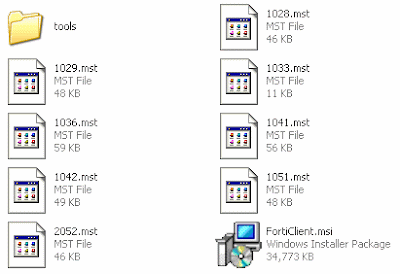
2. Unzip contents.


3. Install Forticlient.msi to a clean system/PC. Then proceed to configure the client as you would like it configured for your end-users.


[When installing; make sure to install only the components that you would like installed for your users as well. This will make the rest of the process a little simpler.]


See [LINK] for a sample FortiClient configuration.


4. Create a folder with a simple filename like "forticlient" in the root of C:\ and copy FCRepackager.exe and Forticlient MSI to it.

FCRepackager.exe can be found in FortiClientSetup_3.0.606\tools.

[Make sure you read FCRepackager_Readme.txt for all available switches and options.]


5. Run c:\forticlient\FCRepackager.exe -i AV,VPN,FW,WF -L p@ssw0rd -v at a DOS prompt.


This command string is executing the following:

Components installed:
AntiVirus,VPN,Firewall,WebFilter

Admin password = p@ssw0rd

Verbose Output:

This process creates the FortiClient.mst file which is required in the next steps. Make sure you place in the same folder as FortiClient.msi if it is not already located there.


6. Scripting the install.


A) To install Forticlient off of a network drive I like to use this little 2 part batch script.

[Make sure that move Forticlient.msi, FortiClient.mst and the scripts into the same folder on the server. In this case it is \\xSERVERx\FortiClient\MR7_Default_Install\.]

Step1.bat
cls
@echo off
TITLE Forticlient MR7 Patch3 Default Install

c:

net use v: \\xSERVERx\FortiClient\MR7_Default_Install


echo This is a silent install.......
echo You will be prompted when finished.
echo.

xcopy v:\*.* C:\Forticlient\*.* /F /Y


echo.
echo.
echo I mapped the install folder to V:\ and copied all of the contents to c:\Forticlient.
echo.
echo.
echo Another script will start and you will lose your connection to your network drives. Sorry.....

call c:\Forticlient\step2.bat

net use v: /delete

echo V:\ drive removed
echo Goodbye
exit

Step2.bat

@echo off
TITLE Forticlient MR7 Default Install [PART 2]

echo ......Installing..... Please Wait......

start /wait msiexec /i c:\Forticlient\FortiClient.msi TRANSFORMS=c:\Forticlient\FortiClient.mst /qn+

echo.
echo.
echo.
echo.
echo.

echo done

pause

B) To script a local install just recycle step2.bat from above. Just make sure that all of your files are in c:\forticlient.