Showing posts with label Logs. Show all posts

Thursday, January 23, 2014

TCL {fortiManager} $script | grep continued

Please refer to my last post on FortiManager scripting for more info.

This script was directly inspired by the legacy Fortinet tech doc: TCL Decisions.

Below is a quick script utilizing our fairly new grep capabilities in FortiOS.

When launched this script will:

1. Find all policies that match our regex.
2. Store their "edit #" value in a variable named $policyid.
3. Run commands in a foreach loop against those policies.


proc do_cmd {cmd} {
  puts [exec "$cmd\n" "# "]
}
foreach line [split [exec "show firewall policy | grep -f deep-inspection\n" "# "] \n] {
  if {[regexp {edit[ ]+([0-9]+)} $line match policyid]} {
    continue
  } elseif {[regexp {set[ ]+(\w+)[ ]+(.*)\r} $line match key value]} {
    lappend fw_policy($policyid) "$key $value"
  }
}
do_cmd "config firewall policy"
foreach policyid [array names fw_policy] {
    do_cmd "edit $policyid"
    do_cmd "unset deep-inspection-options"
    do_cmd "next"
}
do_cmd "end"


Enjoy and feel free to post and questions or comments below.

Sunday, March 3, 2013

TCL scripting with Fortimanager 4.0

This is how you write a simple TCL that will parse the IP address from CLI and input it into your commands.

1. The Problem. 

I needed to begin logging about 200 80c's to our FortiAnalyzer.

The main issue is that all of our interface tunnels are set with 0.0.0.0 local and remote IPs for simplicity so when I input the private 192.x IP of the Analyzer into the GUI it would not route through the tunnel.

The solution to this is to use internal interface IP in the CLI like so:


config log fortianalyzer setting
set status enable
set source-ip 192.168.1.1
end

In the above example let's say that 192.168.1.1 is the internal interface IP for this box.

Now, the question was how I was going to do these for 200 units .. each with their own unique internal interface IP.


2. Fortimanager TCL scripting

Access the Fortimanager TCL scripting feature in the "Device Manager" tab under "Tools".


Click on "Create New"


3. The Script


#!
puts "Script starts ..."

# Create do_cmd procedure to execute CLI commands
proc do_cmd {cmd} {
puts [exec "$cmd\n" "# " 15]
}

# get internal ip
do_cmd "config system interface"
do_cmd "edit internal"
set query [exec "show\n" "# "]
#puts $query
set output [split $query "\n"]
#Find IP address and puts $ip
regexp {(?:\d+\.){3}\d+} $output ip
do_cmd "end"

# set internal ip as source ip for log fortianalyzer
do_cmd "config log fortianalyzer setting"
do_cmd "set status enable"
do_cmd "set source-ip $ip"
do_cmd "end"


Input and save.


4. Execute and Verify

You can only execute scripts at the group level so (if you haven't already) create a new test script group and add your test unit into the group.

Right click the group name and select "Script".

Click "Create New"

Select your script from the drop down and hit OK.


5. Review Script Log

Go to the dashboard of the unit that was in the group that you ran the script on.
On the right side: Click on "Configure" next to Script status.


In this window you should be able to see your script execution history which should look something like my output below.


Starting log (Run on device)
Script starts ...
config system interface

HQ_LAB (interface) #
edit internal
change table entry 'internal'
HQ_LAB (internal) #
end
cmd_clean_context 0, abort=0
HQ_LAB #
config log fortianalyzer setting

HQ_LAB (setting) #
set status enable
path=log.fortianalyzer, objname=setting, size=340, sz_attr=1
attr : status enable, 4, 0
HQ_LAB (setting) #
set source-ip 192.168.1.1
path=log.fortianalyzer, objname=setting, size=340, sz_attr=1
attr : source-ip 192.168.1.1, 4, 320
HQ_LAB (setting) #
end
cmd_clean_context 0, abort=0
HQ_LAB #

I hope this has helped some of you out there. Leave a comment if you have any questions.
Thank you!
-Mo

Thursday, September 6, 2012

No FortiManager, No Problem! [Windows]

Having a Fortimanager can get pricey. Not to mention risky when dealing with the latest builds and a large FGT network. In this post we will examine how we can run scripts/commands on your entire network without a manager by using open source software and the FortiOS CLI.

Download PLink


1. First create a working folder in your root drive. In the illustration below I have named my folder "putty".


2. Then inside the putty folder we will create the following folder structure to store our info. 

Devices / Logs / Scripts. Also save your plink.exe file in this root folder. 


3. Open your "devices" folder and create a new txt file. Add the interface IPs you will be connecting to via SSH in a single column.


4. Open the "scripts" folder and create a new txt with your commands.

This can be any command that you would be able to run in an SSH session on the Fortigate.

Refer to this post for CLI scripting help.

In this case I have used       
get system status | grep Serial-Number


5. Go back to your root folder "putty" and create a new txt file. Save it as "script_FGT.cmd". 

In this txt file we will be calling the script to run on your devices list and create a log in our logs folder. 

Replace username with your account username and password with the account password.

for /f %%i in (c:\putty\devices\devices.txt) do c:\putty\plink.exe username@%%i -pw password -m c:\putty\scripts\grepserial.txt >> c:\putty\logs\_LOG.txt


6. Finally, open a command prompt and run script_FGT.cmd. 


Resources:

Please post any questions in the comments section below. 


Wednesday, December 3, 2008

How to setup a custom FortiClient install.

In this tutorial I will demonstrate how you should setup a custom Forticlient install for your users and include some example scripts to help you along.


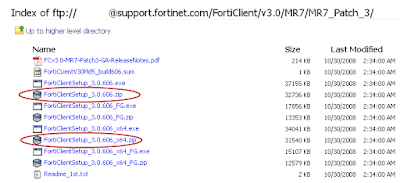
1. Log into the Fortinet Support site and download the latest .zip package of Forticlient.

[Note that the install packages with _FG in the filename are for uploading directly to the Fortigate only.]


ftp://support.fortinet.com/FortiClient/v3.0/


See [LINK] for Readme.txt explanation of different install packages.


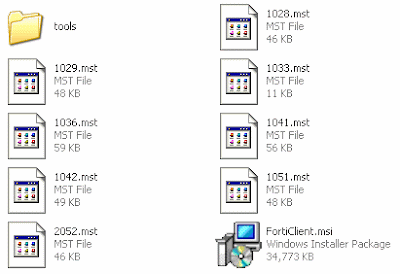
2. Unzip contents.


3. Install Forticlient.msi to a clean system/PC. Then proceed to configure the client as you would like it configured for your end-users.


[When installing; make sure to install only the components that you would like installed for your users as well. This will make the rest of the process a little simpler.]


See [LINK] for a sample FortiClient configuration.


4. Create a folder with a simple filename like "forticlient" in the root of C:\ and copy FCRepackager.exe and Forticlient MSI to it.

FCRepackager.exe can be found in FortiClientSetup_3.0.606\tools.

[Make sure you read FCRepackager_Readme.txt for all available switches and options.]


5. Run c:\forticlient\FCRepackager.exe -i AV,VPN,FW,WF -L p@ssw0rd -v at a DOS prompt.


This command string is executing the following:

Components installed:
AntiVirus,VPN,Firewall,WebFilter

Admin password = p@ssw0rd

Verbose Output:

This process creates the FortiClient.mst file which is required in the next steps. Make sure you place in the same folder as FortiClient.msi if it is not already located there.


6. Scripting the install.


A) To install Forticlient off of a network drive I like to use this little 2 part batch script.

[Make sure that move Forticlient.msi, FortiClient.mst and the scripts into the same folder on the server. In this case it is \\xSERVERx\FortiClient\MR7_Default_Install\.]

Step1.bat
cls
@echo off
TITLE Forticlient MR7 Patch3 Default Install

c:

net use v: \\xSERVERx\FortiClient\MR7_Default_Install


echo This is a silent install.......
echo You will be prompted when finished.
echo.

xcopy v:\*.* C:\Forticlient\*.* /F /Y


echo.
echo.
echo I mapped the install folder to V:\ and copied all of the contents to c:\Forticlient.
echo.
echo.
echo Another script will start and you will lose your connection to your network drives. Sorry.....

call c:\Forticlient\step2.bat

net use v: /delete

echo V:\ drive removed
echo Goodbye
exit

Step2.bat

@echo off
TITLE Forticlient MR7 Default Install [PART 2]

echo ......Installing..... Please Wait......

start /wait msiexec /i c:\Forticlient\FortiClient.msi TRANSFORMS=c:\Forticlient\FortiClient.mst /qn+

echo.
echo.
echo.
echo.
echo.

echo done

pause

B) To script a local install just recycle step2.bat from above. Just make sure that all of your files are in c:\forticlient.


Tuesday, December 2, 2008

Visual FortiClient Overview


General


-Status

-Connection


VPN

-Connections
-My Certifcates


-CA Certificates
-CRL Certificates

AntiVirus

-Scan

-Settings

-Realtime Protection

-Email

-Quarantine

-Registry Monitor

Firewall

-Status
-Applications

-Network

-Intrusion Detection

-Advanced

Webfilter

-Global Settings

-Profile Settings

-Per User Settings
Maintenance

-Update

-Backup/Restore

Logs

-Logview
-Settings